
You need an Okibi account and a source: a GitHub repository, a local codebase, a public API docs site, or an OpenAPI document.
Pick a path. Both build the same kind of CLI, and both show up in the same workspace.
In the terminal
1. Install okibi
curl -fsSL https://okibi.ai/install | shCheck it worked with okibi --version. If your shell can't find okibi, open a new terminal. On macOS and Linux, also check that ~/.local/bin is on your PATH.
2. Sign in
okibi auth login
okibi auth status
A browser opens. Approve the login there and the terminal picks it up. On a remote machine, add --device-code. No account yet? Run okibi auth signup.
3. Generate
From your product's source folder, run:
okibi generate . --name my-cli --reviewUse your own CLI name in place of my-cli. okibi uploads the folder, prints a run id, and streams progress. To build from GitHub instead, pass --repo https://github.com/OWNER/REPO in place of ..
With --review, the build stops at awaiting-spec-approval before anything is built. okibi prints the next commands and exits. Keep the run id.
4. Review and build
okibi spec show my-cli <run-id>
okibi spec approve <run-id>
okibi status <run-id>
Read the spec first: the commands, auth, and the API base URL. If something is wrong, send it back instead of approving:
okibi spec reject <run-id> --feedback "Add task search and paginate the task list"The agent revises the spec and the build pauses again. Lost the run id? okibi runs --cli my-cli lists your recent builds. See Approve the spec.
5. Download
When okibi status says the build succeeded, download it:
okibi pull <run-id> --out ./my-cliWithout --review, okibi generate builds straight away and downloads the CLI into ./my-cli for you.
In the app
1. Open the builder
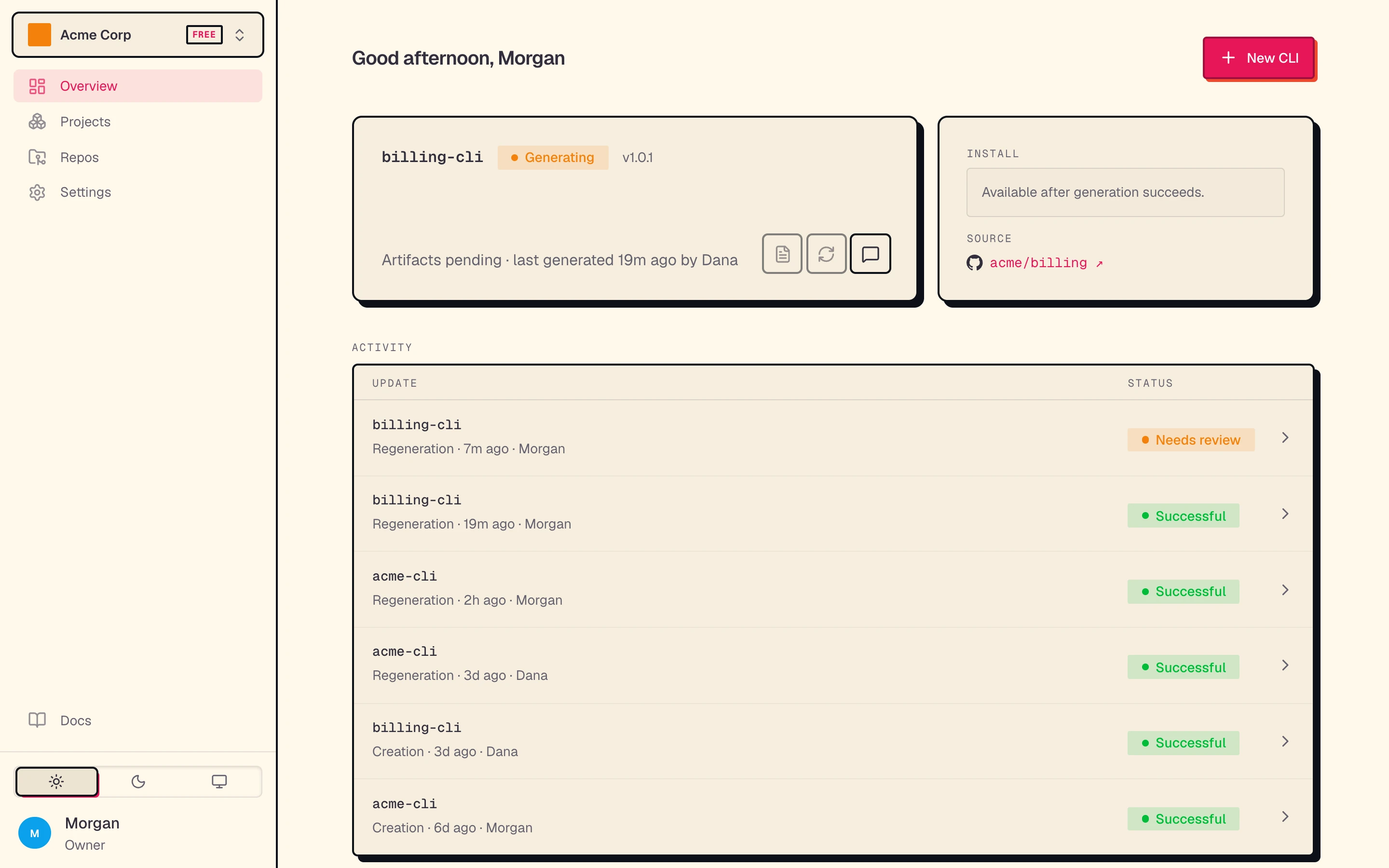
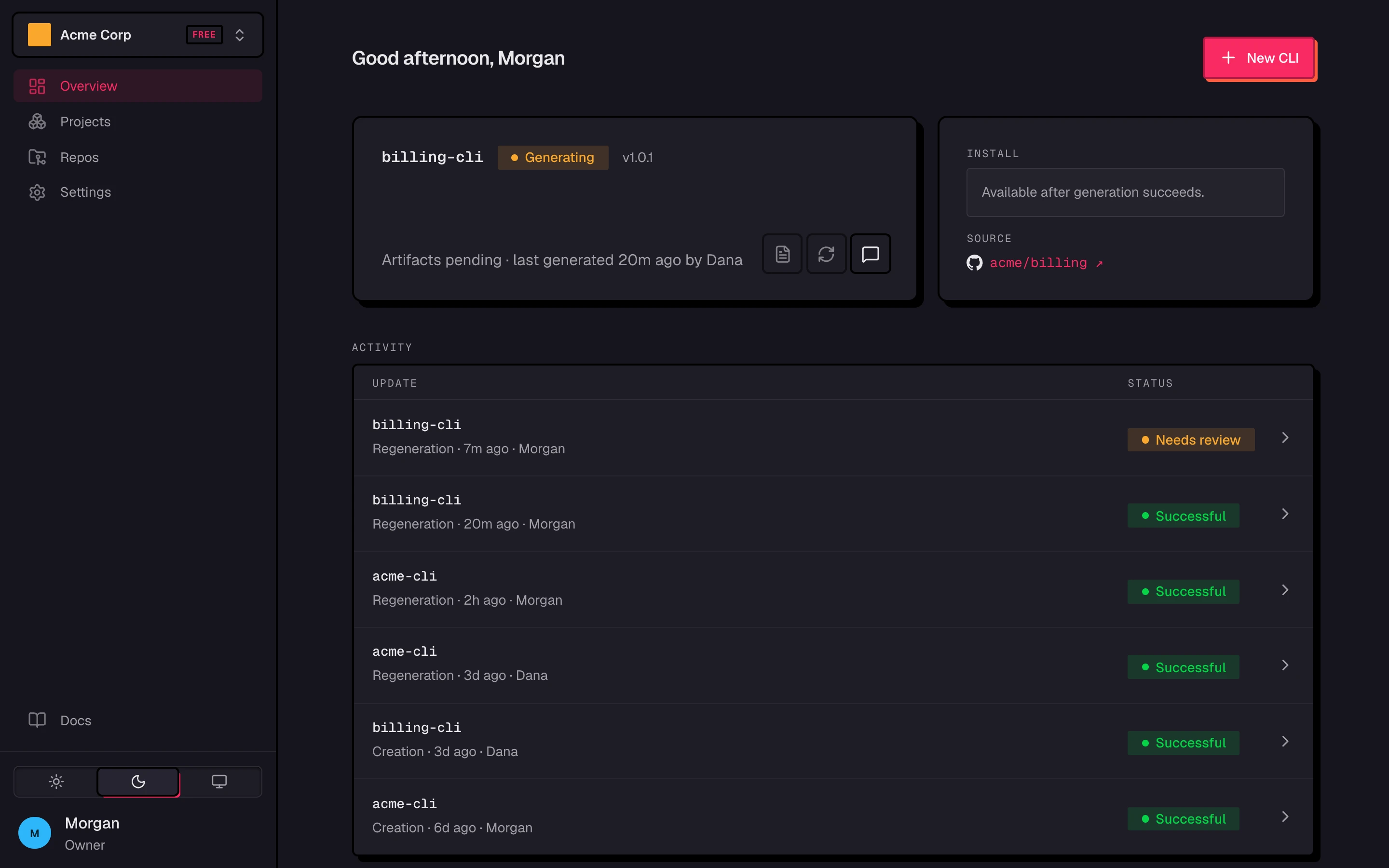
Sign in at okibi.ai and click New CLI.
2. Fill in the form
- Name: the command your users type, such as
acme. - Start from:
- OpenAPI spec: paste a public link to your OpenAPI or Swagger spec, or drop a JSON or YAML file.
- Docs or code: paste an API docs link or a public GitHub repository. An agent writes the OpenAPI spec first, then the CLI builds from it.
- Where the code goes: an Okibi-hosted private repo, or My GitHub, a private repo you own (Pro).
Click Create CLI. To see it work first, click Try our example.
3. Wait for v1
The first version, v1, builds straight from the spec in about a minute. v1 from a spec is free. When an agent writes the spec from docs or code, that comes first and takes longer, and it counts as 1 generation, together with that build's suggestions. You can leave the page: Okibi emails you when v1 is ready, or if the build stops.
4. Install it
The ready page shows the install command. Your customers don't get it yet. To choose what they install, see Releases and install.
5. Review suggestions
Once v1 is ready, agent ready optimization works on login, command names, help text and examples, and workflow commands. Each improvement arrives as a suggestion. Click Accept or Reject on each, or Accept all. Nothing changes until you accept. Accepted suggestions go into okibi.yml and ship in a new build, which publishes like any regeneration.
Choose a source
Use exactly one source per generation.
| Source | Command |
|---|---|
| A local codebase | okibi generate ./path --name my-cli |
| A GitHub repository | okibi generate --repo https://github.com/OWNER/REPO --name my-cli |
| Public API docs | okibi generate --docs https://docs.example.com/api --name my-cli |
| An OpenAPI document | okibi generate --spec ./openapi.yaml --name my-cli |
CLI names are 1 to 64 lowercase letters, numbers, or hyphens. They start with a letter and end with a letter or number.
--review works for a local codebase or a repository. API docs and OpenAPI sources build without a pause in the terminal. The app never pauses for review: v1 builds as soon as you create the CLI.
Switch between them
The app and okibi share the same workspaces and CLIs. Start in one and carry on in the other:
okibi clis
okibi clis show my-cli
okibi runs --cli my-cli
If a build is detached
Closing the terminal does not stop a build. Pick it up again with its run id:
okibi status <run-id>
okibi pull <run-id> --out ./my-cli