
A workspace holds your CLIs, the people who work on them, and the plan that sets their limits. Every account starts with a personal workspace.
Create and switch workspaces
- Click the workspace name at the top of the sidebar.
- Pick a workspace to switch to it, or click Create workspace.
- Enter a Workspace name and click Create workspace.
Creating more workspaces than your personal one needs the Pro plan. See Plans and billing.
A workspace's URL can't change, but owners and admins can rename it in Settings > Account, under Workspace.
Roles
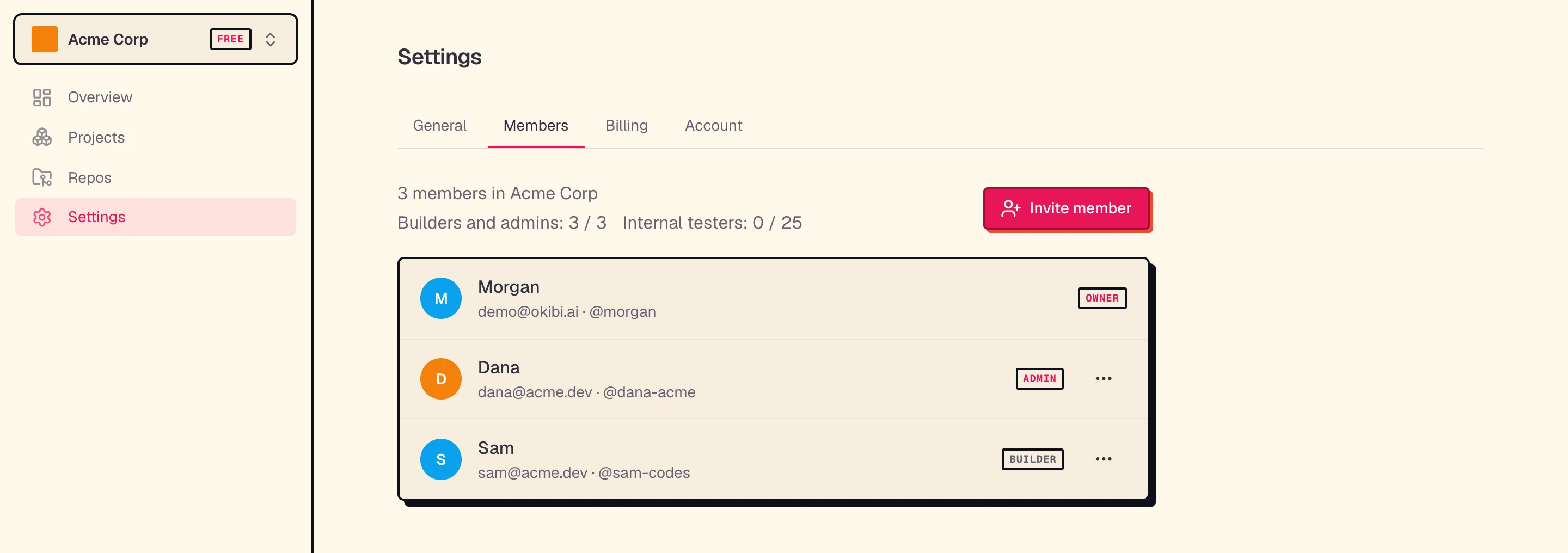
The person who creates a workspace is its owner. Everyone else joins with one of three roles.
| Role | What they can do |
|---|---|
| Owner | Everything an admin can, plus invite admins, change any member's role, and delete or reset the workspace |
| Admin | Everything a builder can, plus release CLIs, manage testers and domains, rename the workspace, manage billing, invite builders and testers, and change or remove builders and testers |
| Builder | Create CLIs and run generations |
| Tester | Install and try the workspace's private beta CLIs, from a separate Testing view |
Testers can't use okibi in a workspace. See Testers for private beta testing.
Invite people
- Open Settings > Members and click Invite.
- Enter their Email, pick a role, and click Send invite.
They get an email with an Accept invitation link. They sign in with that same email address and click Accept. Invitations expire after 7 days.
Your plan limits how many builders and admins, and how many testers, a workspace can have. Owners and admins see both counts in the Seats row of Members. An invite that would go over the limit fails.
Change a role or remove someone
- Open Settings > Members.
- Click Change role next to the person.
- Pick a role and click Save. To remove them instead, click Remove from workspace, then Remove.
Owners can change or remove any other member. Admins can switch people between builder and tester, and remove builders and testers. A removed member loses access right away.
Connect GitHub
Okibi uses two GitHub Apps. Both connect to your Okibi account, not to one workspace.
| App | What it does | How to connect |
|---|---|---|
| Okibi GitHub App | Reads the repositories you choose, so Okibi can build from private code | Settings > Account > Connect GitHub, or okibi auth github |
| Publisher app | Creates a repository in your GitHub account and pushes a generated CLI's source to it | okibi auth publisher. See Releases and install |
Each workspace keeps its own list of repositories. Open Repos and click Sync, or run okibi repos --workspace acme.
To change which repositories Okibi can read, click Manage on GitHub in Settings > Account, or run okibi auth github manage OWNER. Then sync again.
Delete or reset a workspace
Owners find this in Settings > Account > Danger zone. It can't be undone.
- Delete workspace removes the workspace with its CLIs, build history, and members.
- Your personal workspace can't be deleted. Reset workspace clears its CLIs and build history instead.
You can't move a CLI to another workspace yourself. Email hello@okibi.ai to ask for a move.